User Guide
This guide walks through each feature of the FUSION GUI.
Simulation Runs
The Runs section lets you create, monitor, and view simulation results.
Run List (Dashboard)
The main dashboard shows all simulation runs with their status.
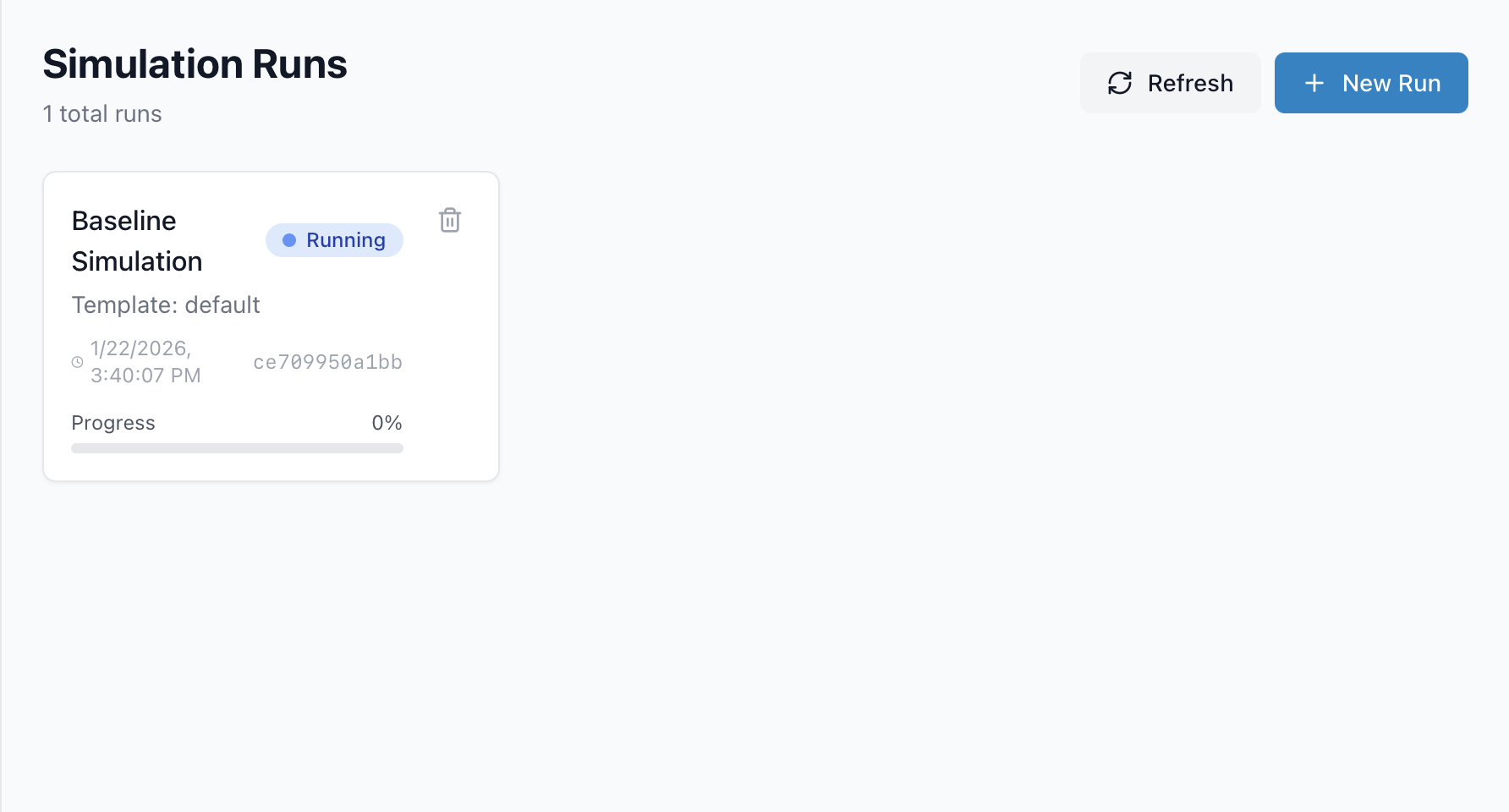
Status indicators:
Pending - Run is queued but not started
Running - Simulation is in progress
Completed - Simulation finished successfully
Failed - Simulation encountered an error
Cancelled - Run was manually cancelled
Actions:
Click a run card to view details
Click “New Run” to create a new simulation
Creating a New Run
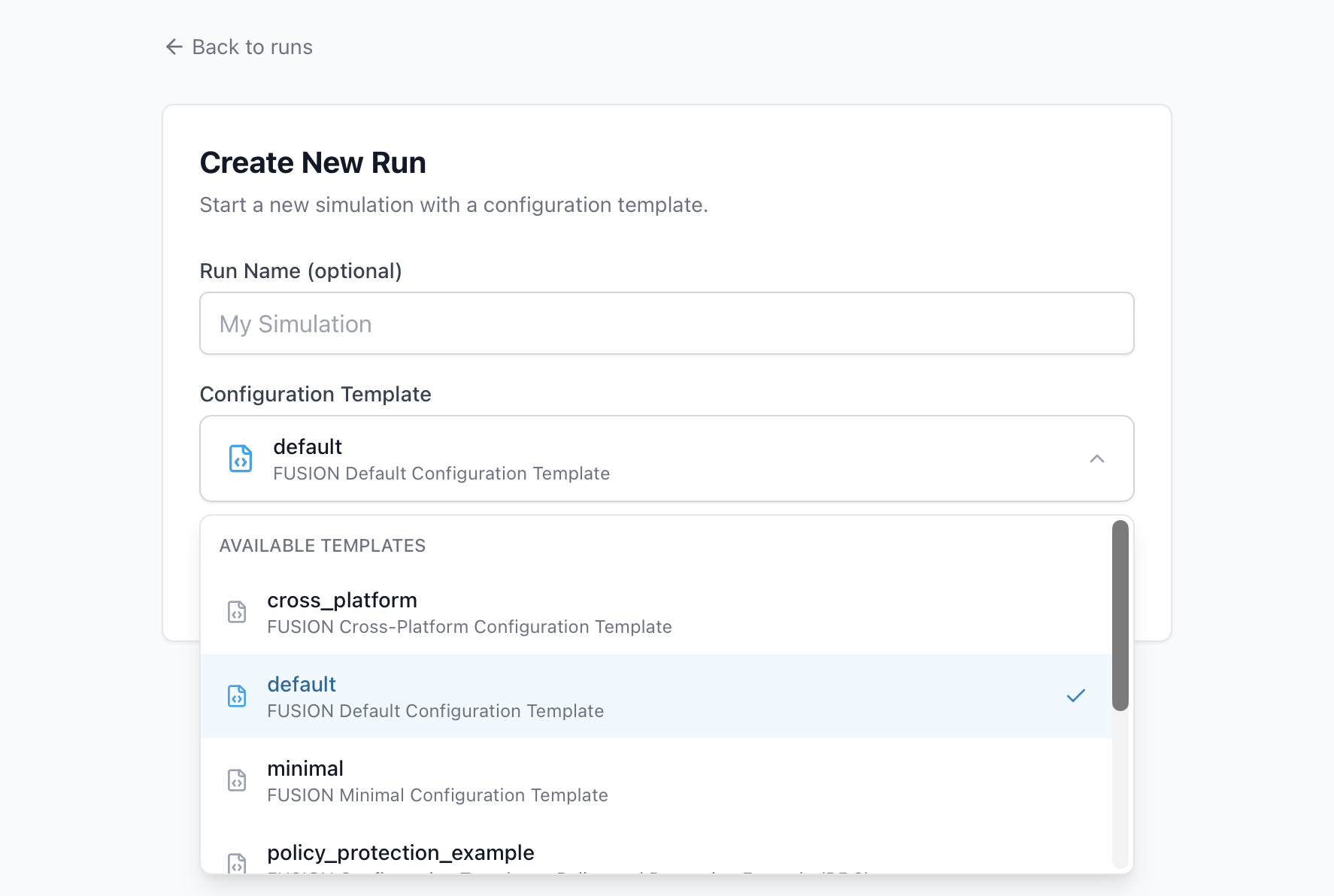
Steps:
Click “New Run” from the dashboard
Enter a Run ID (unique identifier for this simulation)
Select a Config Template from the dropdown
(Optional) Modify the configuration in the editor
Click “Start Run”
The configuration editor shows the INI file contents. You can modify values before starting the run.
Run Details
Click on any run to view its details.
Logs Tab
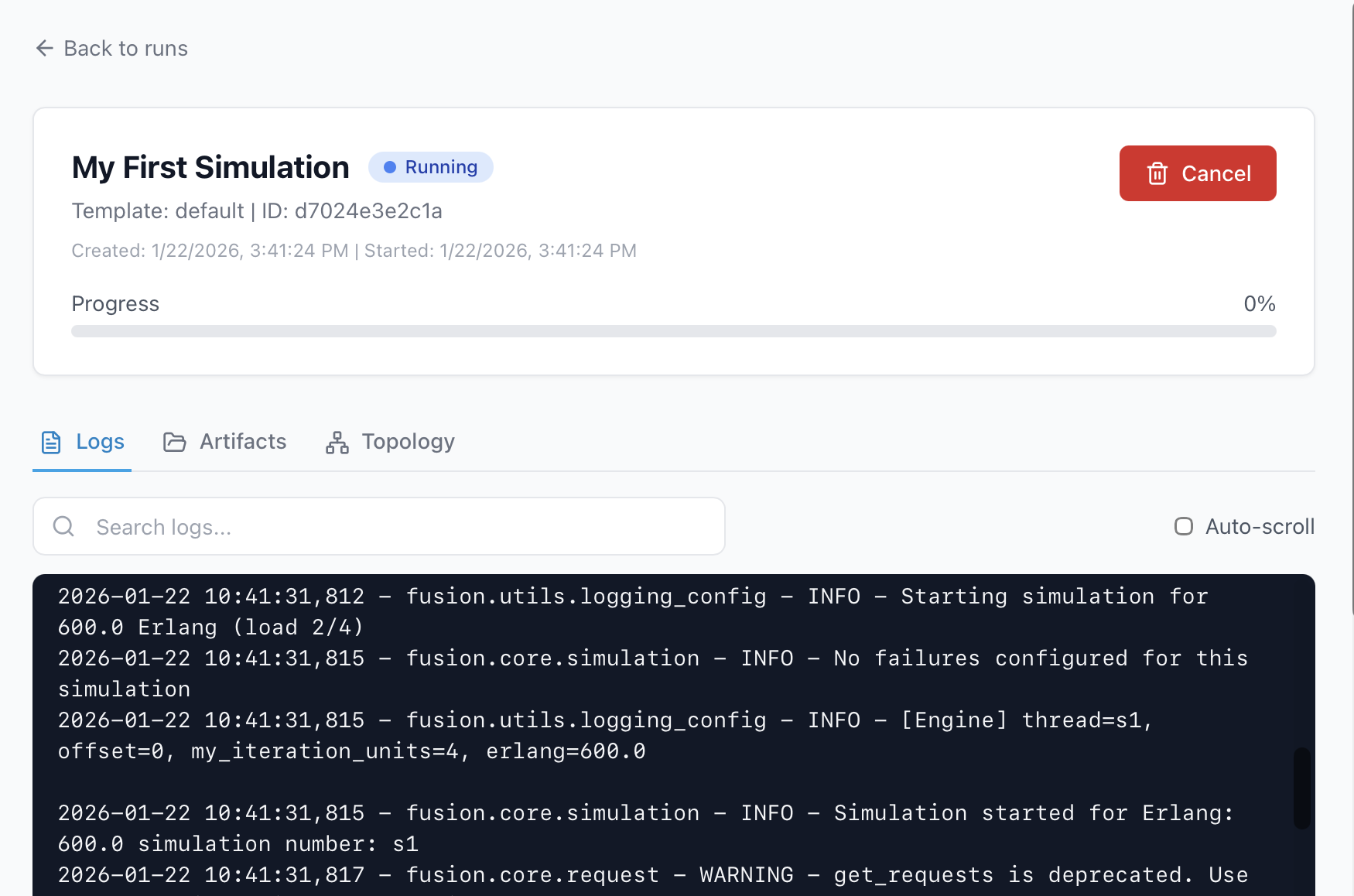
Real-time log streaming for running simulations
Complete log history for finished runs
Auto-scroll follows new log entries
Artifacts Tab
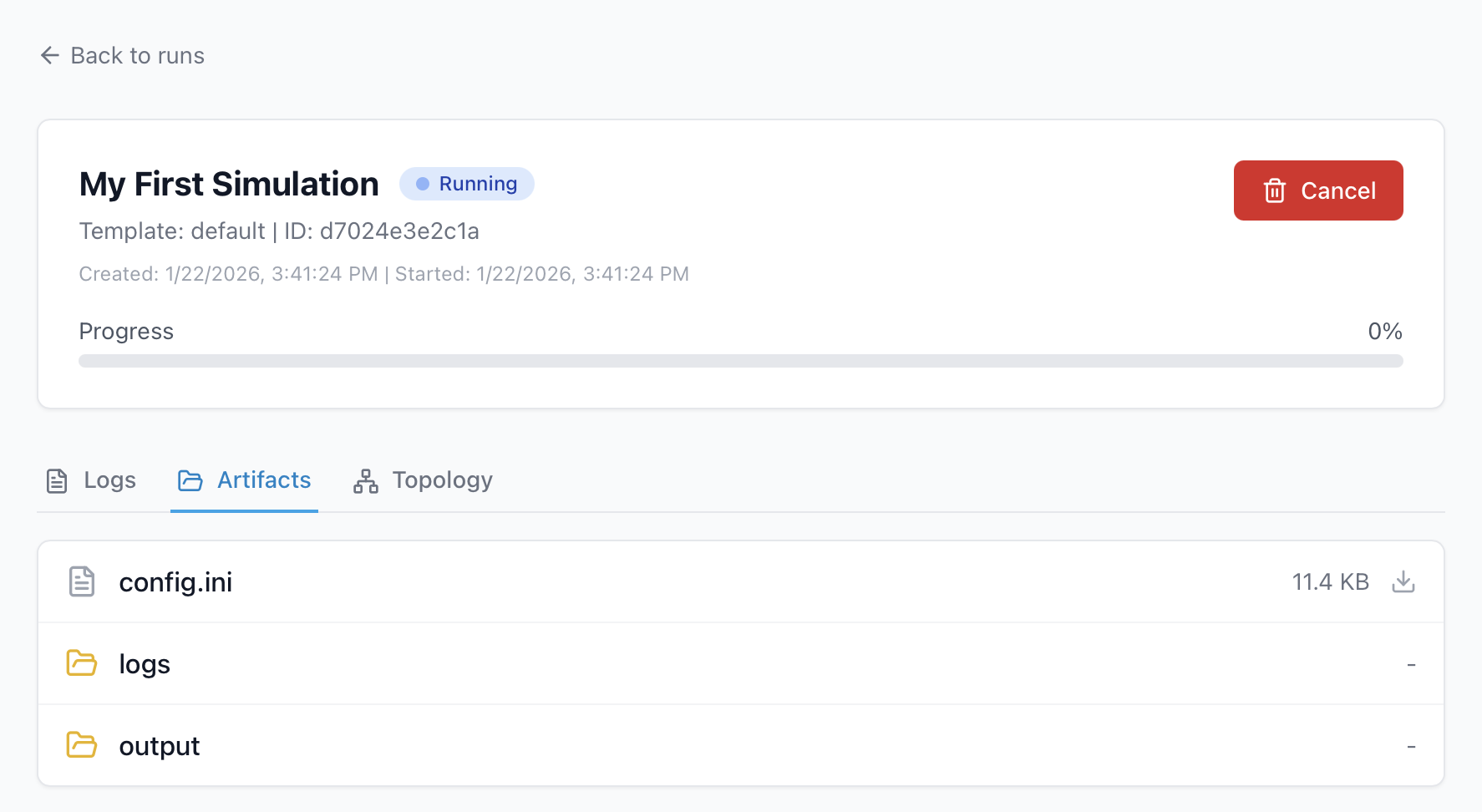
Browse output files generated by the simulation
Download individual files
View JSON results and statistics
Network Topology
Visualize network topologies used in simulations.
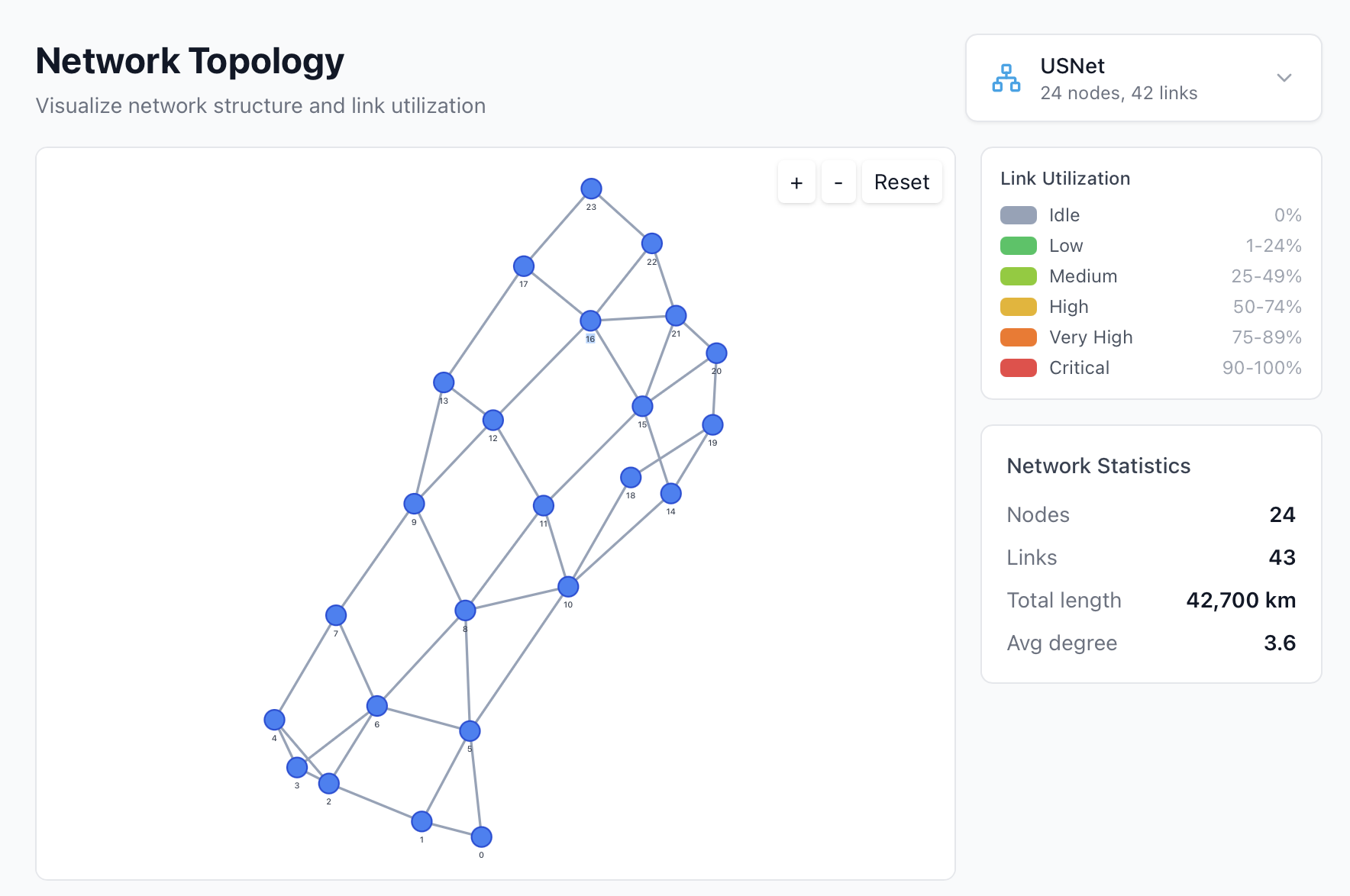
Features:
Interactive node-link diagram
Click nodes to see details (ID, degree, connected links)
Zoom and pan controls
Link utilization coloring (when viewing run results)
Selecting a Topology:
Use the dropdown to select from available topologies
The graph updates to show the selected network
Node positions are computed automatically using force-directed layout
Understanding the Visualization:
Nodes represent network switches/routers
Links represent fiber connections
Node size may indicate degree (number of connections)
Link color may indicate utilization (green=low, red=high)
Configuration Editor
Edit simulation configurations with syntax highlighting.
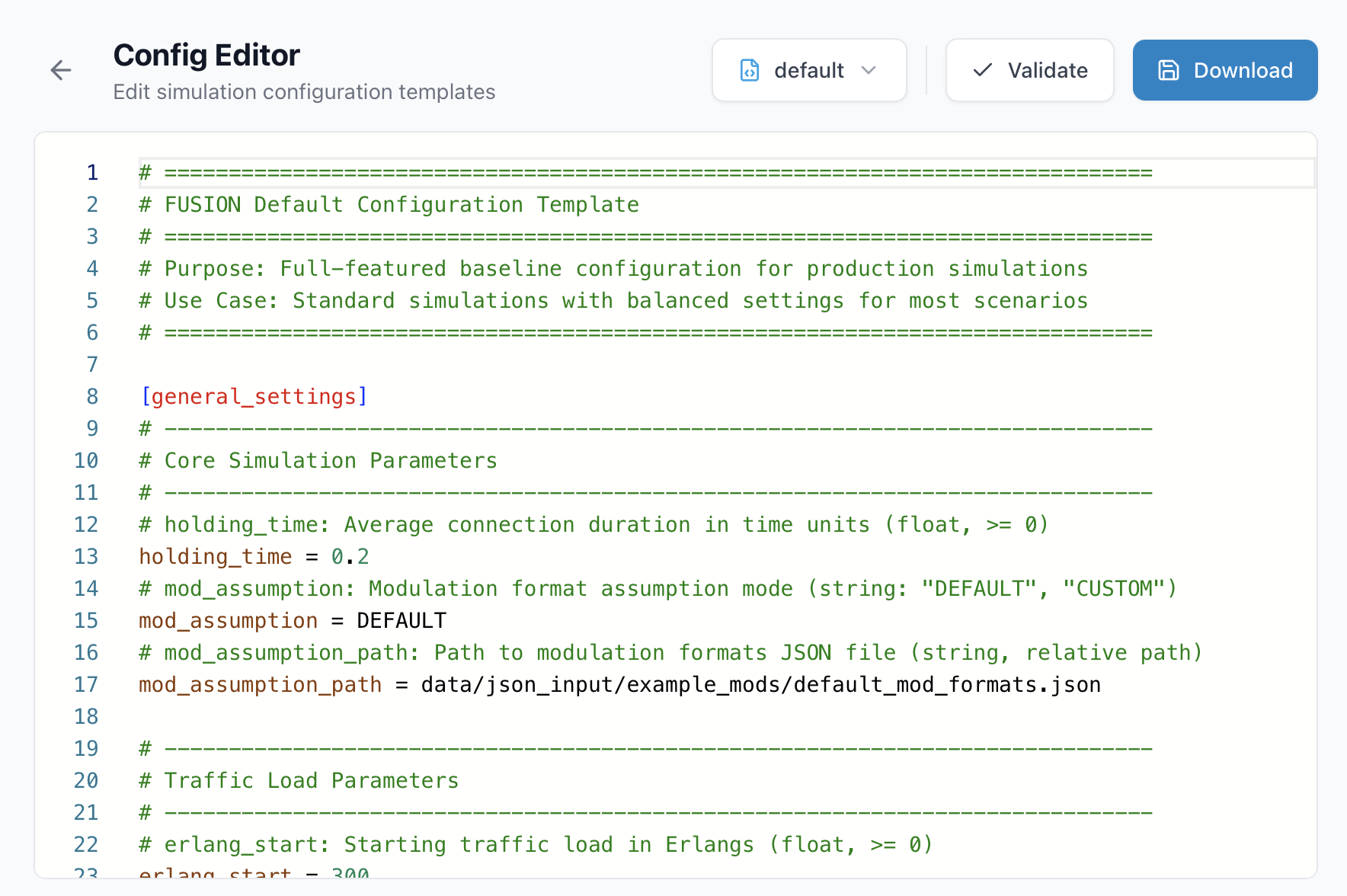
Features:
INI syntax highlighting
Load templates from the configs directory
Real-time validation feedback
Save configurations for later use
Workflow:
Select a template from the dropdown
The editor loads the template content
Modify values as needed (Erlang load, network, algorithms, etc.)
Use the configuration when creating a new run
Common Configuration Sections:
[general_settings]- Core parameters (network, requests, Erlang)[routing_settings]- Routing algorithm options[rl_settings]- Reinforcement learning parameters[s1],[s2], … - Per-process overrides
See Configuration Tutorials for detailed configuration help.
Codebase Explorer
Browse the FUSION codebase structure and documentation.
Architecture View
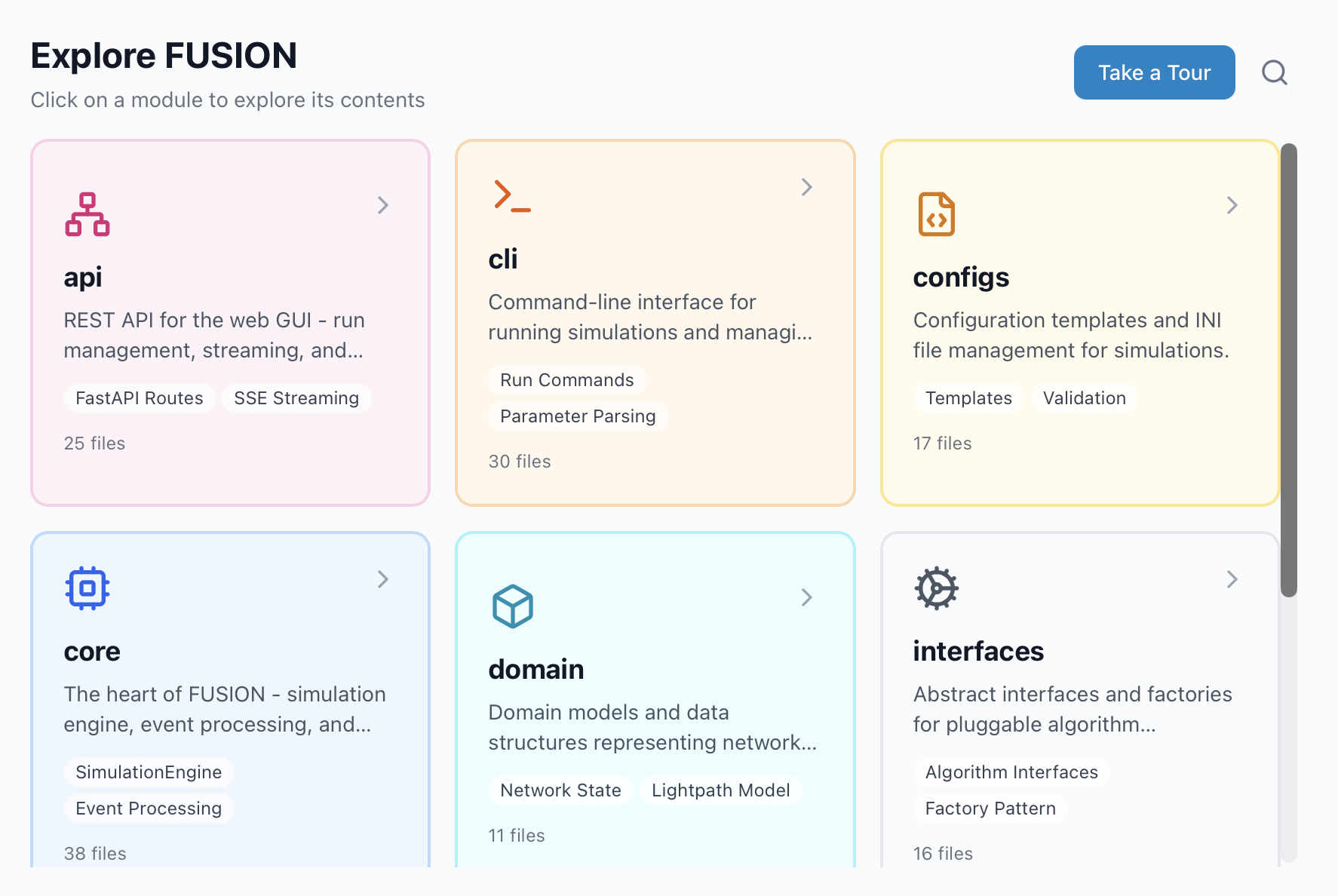
The architecture view shows high-level module categories:
core - Simulation engine and orchestrator
modules - Algorithm implementations (routing, spectrum, RL, etc.)
configs - Configuration system
cli - Command-line interface
Click a module card to explore its contents.
Guided Tour
The guided tour introduces the codebase structure step-by-step:
Click “Start Tour” from the architecture view
Follow the prompts as they highlight different sections
Learn about each module’s purpose and key files
Code View
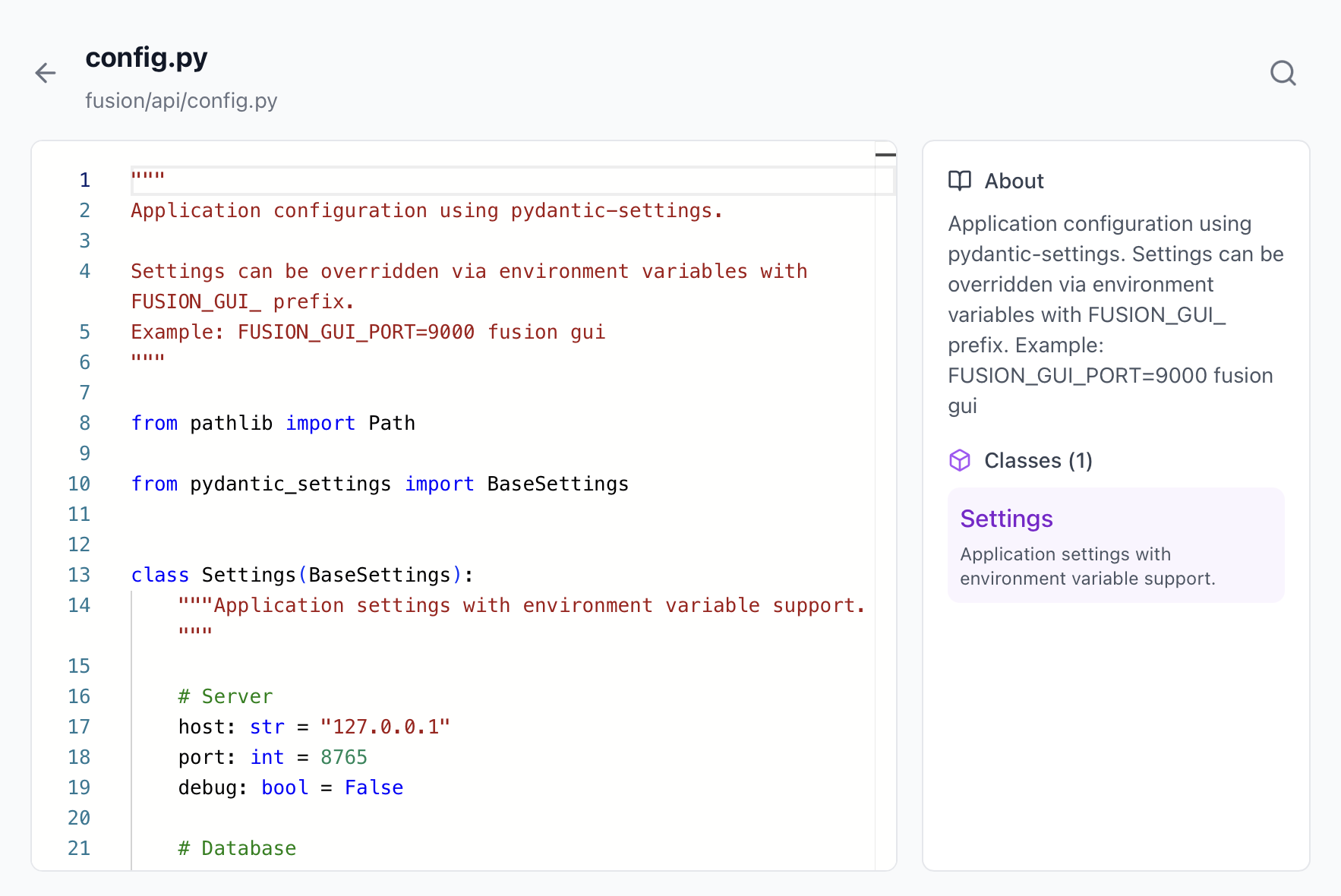
File tree on the left shows directory structure
Code panel on the right displays file contents
Syntax highlighting for Python, INI, and other formats
Search within files using Ctrl+F / Cmd+F
Settings
Customize the GUI appearance and behavior.
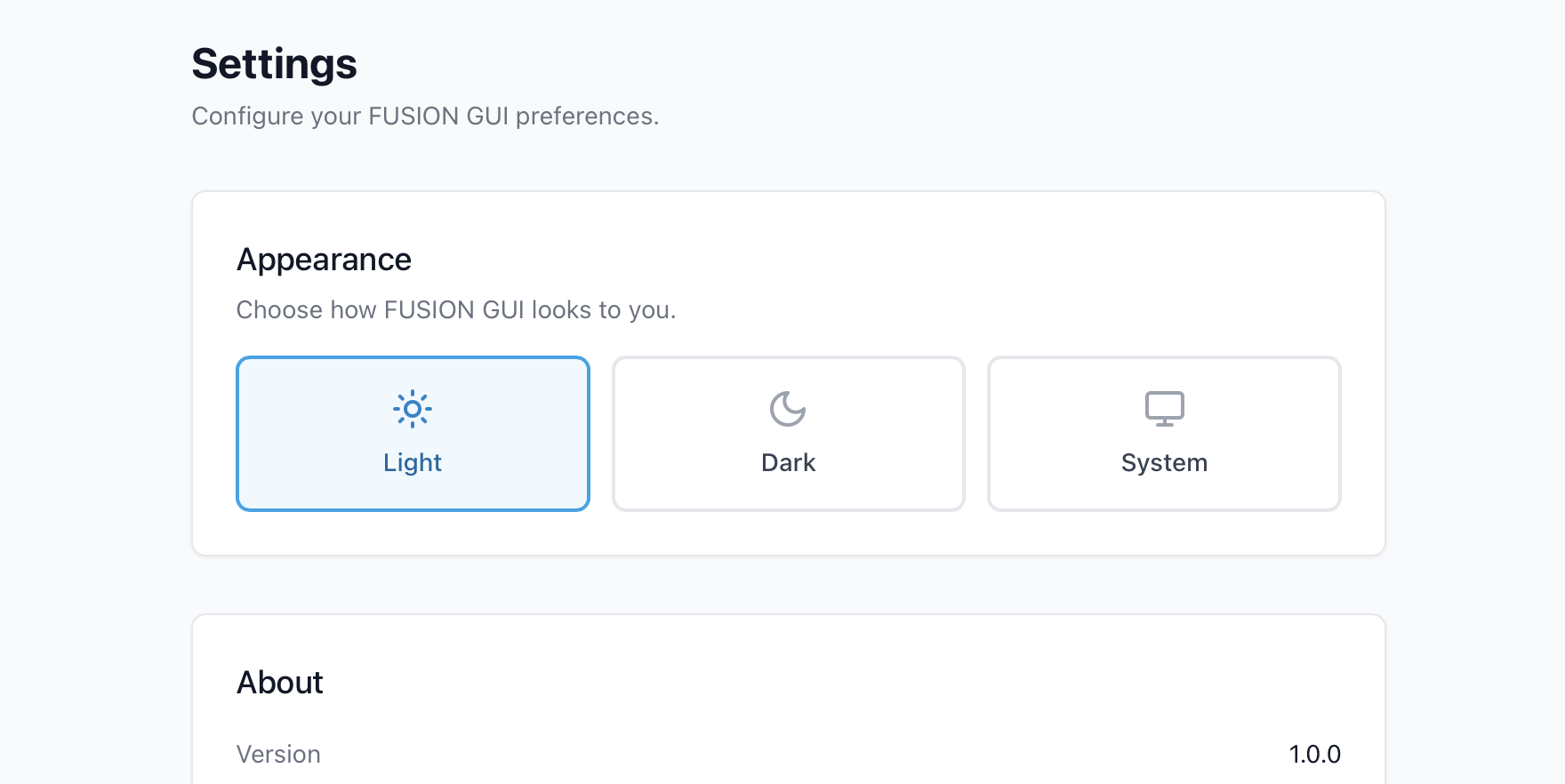
Available Settings:
- Theme Selection
Light - Default light theme
Dark - Dark theme for low-light environments
System - Follow your OS preference
Settings are persisted in your browser’s local storage.
Keyboard Shortcuts
Shortcut |
Action |
|---|---|
|
New run |
|
Toggle sidebar |
|
Close modal/dialog |
Browser Compatibility
The GUI is tested on:
Chrome 90+
Firefox 88+
Safari 14+
Edge 90+
JavaScript must be enabled for the GUI to function.